
By Jennifer Parker February 24, 2026
If you tutor, coach, or run a small education business, you already know the “invisible” work: texting back and forth to find a time, chasing confirmations, answering the same onboarding questions, and reminding families to pay. That admin load quietly steals hours you could spend teaching—or resting.
This guide shows you how to use tutoring scheduling software for automated bookings to turn lesson scheduling into a clean, repeatable system. The goal isn’t “more tech.” The goal is fewer interruptions, fewer no-shows, clearer policies, and a booking experience that feels effortless for students and parents.
We’ll walk through the full workflow—automating lesson booking with tutoring software from inquiry to follow-up—plus a step-by-step setup tutorial, real-world examples, and a 30/60/90-day rollout plan.
Whether you’re a solo tutor, a multi-tutor center, an academic coach, or a music/language instructor, you’ll leave with practical templates and checklists you can implement immediately.
What Tutoring Scheduling Software Is (And How It Automates Booking)
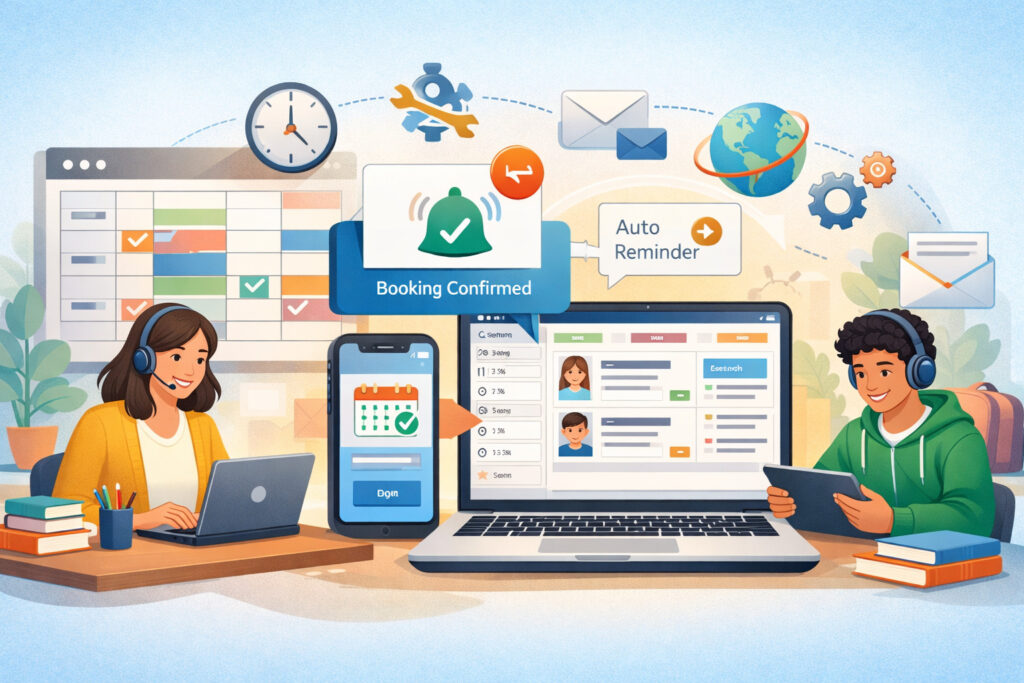
Tutoring scheduling software is a specialized appointment system that lets students (or parents/guardians) book lessons through an online booking page while the software enforces your availability rules, policies, and optional payments automatically.
In practice, it functions like an online lesson booking system with guardrails: it only offers times you’ve approved, collects the right information upfront, and triggers confirmations and reminders without you lifting a finger.
Automation works because the software ties several steps together:
- Self-service student scheduling from a booking link (no back-and-forth messages)
- Tutor calendar management that syncs real-time availability with your calendar
- Rules for lesson lengths, buffers, and capacity limits
- Intake forms for tutoring that capture needs before the first session
- Tutoring session reminders (SMS/email) that reduce forgetfulness and no-shows
- Optional online payments for tutoring sessions, packages, or deposits
- Post-session progress tracking and session notes to keep tutoring consistent
A good system does more than “book time.” It prevents scheduling chaos. It reduces human error. And it creates a professional student experience that scales from 5 students to 50+ without your inbox becoming your scheduling tool.
Pro Tip: Think of your booking system like a front desk that never sleeps. Your job is to train it once—availability, policies, forms, and follow-ups—so it handles routine work consistently every day.
The End-To-End Automated Workflow: Inquiry To Confirmed Lesson (And Beyond)
When people say they want “automation,” they often mean “I want fewer messages.” But the real value comes from automating the entire journey, not just the booking moment. A modern workflow usually looks like this:
- Inquiry (website form, social profile link, referral message)
- Booking page shared immediately (or after a quick qualification step)
- Availability rules show only valid times
- Intake form gathers placement info and goals
- Confirmation delivered instantly with next steps
- Reminders sent before the session (and optionally after)
- Payment collected (optional but common: prepay, deposit, package)
- Session notes captured and stored in a tutoring CRM or notes area
- Follow-up triggers: homework email, reschedule link, or next session prompt
A well-designed online lesson booking system makes this feel smooth to families while protecting your time. If a student needs a 60-minute lesson, they should only see 60-minute options that fit your rules, with buffer times and policy enforcement baked in.
If a parent wants to book, they should be able to do so with appropriate parent/guardian booking permissions and clear communication about who will attend.
Automation also supports consistency. Every student receives the same professional steps: confirmation, reminders, and instructions—no matter how busy you are. That consistency is part of trust-building, especially in local markets where referrals and reviews depend on reliability.
Pro Tip: Don’t try to automate everything on day one. Start by automating the steps that create the most daily friction: booking + confirmations + reminders. Then layer on policies and payments once the basics are stable.
Key Features That Make Automation Actually Work In 2026
Not every scheduler is built for teaching workflows. When evaluating tutoring scheduling software for automated bookings, focus on features that reduce edge cases—because edge cases are what create manual work. The best platforms turn “exceptions” into rules.
Real-Time Availability Syncing And Calendar Integrations
Real automation requires real-time availability syncing with the calendar you actually use. If you update your personal calendar for a school event or rehearsal, those times should disappear from your booking page automatically. Look for robust calendar integrations (two-way sync) so you don’t get double-booked.
The best setup also supports multiple calendars: for example, one calendar for tutoring, another for personal commitments, and a third for a shared team calendar. You want the booking system to “read” conflicts across the calendars that matter for your availability.
Pro Tip: If you ever think, “I’ll block it off later,” that’s a sign your sync isn’t set up correctly. Automation only works when the system is the source of truth.
Self-Serve Booking, Recurring Lesson Scheduling, And Capacity Controls
Self-serve booking is the headline benefit: students choose a time and receive instant confirmation. But the deeper benefit is recurrence and capacity. Many tutors rely on weekly sessions, so recurring lesson scheduling matters—both for consistent progress and predictable income.
Also look for:
- Buffer times between lessons (to reset, travel, or write notes)
- Travel-time logic if you offer in-person sessions
- Tutor availability rules (lead time, cutoff windows, minimum notice)
- Waitlists and overbooking prevention for popular time slots
- Capacity limits for group classes (and a clean waitlist workflow)
Reminders, Reschedule/Cancel Links, And Policy Enforcement
Reminders should be automatic, customizable, and multi-channel where possible. Tutoring session reminders (SMS/email) reduce no-shows, but only if they’re timed and written well.
A modern system also includes self-serve changes: reschedule and cancellation policies enforced through links so you’re not manually deciding every case. Your software should be able to:
- Prevent cancellations inside your policy window (or apply a rule)
- Offer rescheduling only when allowed
- Record timestamps and changes
- Notify you and the client automatically
Intake Forms, Placement Info, And Student Onboarding Workflow
An intake form isn’t a “nice to have.” It prevents awkward first sessions where you spend half the time discovering basics. In 2026, families expect a structured student onboarding workflow that includes:
- Student level and goals
- Availability preferences
- Learning challenges or accommodations
- Materials used (book, instrument level, exam focus)
- Parent communication preferences (where applicable)
If the software supports storing responses in a tutoring CRM or student notes area, your teaching becomes more consistent, especially across multiple tutors.
Tutor Calendar Management: Set It Up Once So It Runs Itself

Good tutor calendar management is the foundation of everything else. Most scheduling problems come from vague availability and missing rules. Your goal is to define availability in a way that matches real life—energy, travel, prep time—not just “free time.”
Availability windows and time-off rules
Start by designing availability windows you can sustain. If you offer every possible slot, you’ll get bookings at inconvenient times and burnout faster. Use windows like:
- After-school blocks on specific days
- Evening blocks for adults
- Weekend mornings only (if that’s your boundary)
- Seasonal changes (exam months vs summer)
Add time-off rules immediately. Whether it’s a weekly recurring block or an occasional day off, your booking system should remove those slots automatically. If you do this manually, you will eventually forget once, and that one mistake costs you time, trust, or both.
Pro Tip: Create “availability you’re happy to teach,” not “availability you could technically teach.” Automation amplifies whatever you set—good boundaries or bad ones.
Different lesson lengths: 30/60/90 minutes without confusion
Most tutors offer multiple lesson lengths. The key is to configure them so clients don’t pick the wrong format. Your booking page should make it obvious:
- 30 minutes: quick check-ins, younger learners, homework review
- 60 minutes: standard instruction and practice
- 90 minutes: intensive sessions, exam prep, deep projects
Avoid mixing all lengths on one page without guidance. Instead, create separate booking options with clear descriptions and rules (like buffers). If your software supports it, set different availability by duration (for example, 90-minute sessions only on days with larger teaching blocks).
Group sessions vs 1:1 and multi-tutor scheduling
If you run a center or offer group classes, calendar management becomes capacity management. Your system should support:
- Group class scheduling with seat limits
- Waitlists that notify people when a seat opens
- Different staff calendars for different subjects/levels
- Routing rules (who gets assigned based on service type)
For centers, the big win is removing the bottleneck where one admin person coordinates everything. Students should be able to book the right session with the right tutor, while the system prevents conflicts, enforces capacity, and records who is attending.
Step-By-Step Setup Tutorial: From Blank Account To Automated Bookings
Below is a practical setup flow you can follow with nearly any tutoring scheduling software. The key is to build the system in layers so you don’t overwhelm yourself—and so testing is simple.
Step 1: Define your services and outcomes
Start by listing what clients can book. Keep it tight:
- 1:1 tutoring (30/60/90 minutes)
- Consultation or placement call (10–20 minutes)
- Group sessions (fixed schedule with seat limits)
- Online-only vs in-person variants (if needed)
For each service, write a one-sentence outcome: “What will the student get from this session?” This becomes your booking page description. It also reduces wrong bookings because families understand what they’re selecting.
Pro Tip: If you’re often asked, “Which session should I choose?” add a short decision guide on the booking page rather than answering individually.
Step 2: Connect calendars for real-time availability syncing
Enable two-way sync with the calendar you actually maintain day-to-day. Then choose which calendars should block availability. For example:
- Personal commitments calendar blocks tutoring slots
- Tutoring calendar shows confirmed sessions
- Shared team calendar blocks meetings (centers)
Test it: add a fake event in your calendar and confirm the slot disappears from the booking page. This single test prevents many future headaches.
Step 3: Set tutor availability rules and buffers
Configure availability windows by day and time. Then apply rules:
- Minimum notice (example: at least 12–24 hours)
- Booking cutoff (example: no booking past 8 pm for next morning)
- Buffer times between lessons (example: 10 minutes after each session)
- Travel time if you do in-person tutoring
- Limits per day (to prevent overload)
These rules protect your energy and ensure the schedule is teachable, not just bookable.
Step 4: Build your intake form for tutoring (only what you’ll use)
Create an intake form that collects what you need to deliver a strong first session. Keep it focused so completion rates stay high. Useful fields often include:
- Student name and grade/level
- Subject(s) and goals
- Current challenges and recent scores (if relevant)
- Preferred learning style (short prompt)
- Any accommodations or important context
- Parent/guardian details (if they manage bookings)
- Consent checkbox for policies
If your software supports conditional fields, use them: show instrument questions only if “music” is selected, or show exam fields only if “exam prep” is selected.
Step 5: Configure confirmations, reminders, and follow-ups
Write confirmations that reduce confusion. A strong confirmation message includes:
- Date/time (and location or link)
- What to prepare (materials, device, quiet space)
- How rescheduling works (include a link)
- Payment instructions (if not collected at booking)
Set reminders using tutoring session reminders (SMS/email). A common pattern:
- 24 hours before: logistics + preparation
- 2 hours before: quick “see you soon” with link/location
Add a follow-up automation if your tool supports it: “Here’s your recap + next steps + book your next session.”
Step 6: Optional—enable payments, packages, invoicing, and receipts
If you choose to accept payments through your scheduler, configure it carefully:
- Decide whether you require full prepay, a deposit, or pay-later
- Enable invoicing and receipts
- Set package options (example: 4-session bundle)
- Add package and membership billing if you offer ongoing plans
Test checkout on a private link before launching publicly.
Step 7: Test the full workflow like a student (and like a parent)
Run at least three test bookings:
- A new student booking a single session
- A student booking a recurring lesson series
- A parent booking for a student with alternate contact info
Verify each step: intake form, confirmation, calendar entry, reminder timing, reschedule link, and payment receipt (if enabled). Fix confusion now, before real clients encounter it.
Automating Payments Ethically: Fewer No-Shows, Smoother Cash Flow
Payments are optional, but in many tutoring businesses they’re the difference between a calm schedule and constant chasing. When implemented well, online payments for tutoring sessions reduce admin work and protect your time—without being harsh or unfair.
Deposits, prepay, packages, and memberships
There are four common approaches:
- Prepay per session: simple and reduces no-shows
- Deposit + remainder later: useful for longer sessions or premium slots
- Packages: encourage consistency and reduce per-session checkout friction
- Membership billing: a predictable monthly plan that includes a set number of sessions
Packages and memberships work best when your terms are clear: what’s included, expiration rules, and make-up policies. If your software supports it, link package redemption automatically to booking so clients don’t need a manual code or separate message.
Pro Tip: Payments should support commitment, not punish mistakes. Pair payment rules with clear rescheduling options and reminders so clients feel guided, not trapped.
Invoices vs checkout pages (and what families prefer)
Some clients prefer a direct checkout at booking. Others prefer an invoice after the session, especially for ongoing arrangements. Your scheduler may support both:
- Checkout page: best for instant confirmation, deposits, and packages
- Invoice: best when sessions vary, when a third party pays, or when you need flexibility
If your audience includes parents paying for students, ensure receipts are easy to access and clearly labeled. Invoicing and receipts should be automatic, not a separate manual process.
Reducing no-shows without awkwardness
To reduce no-shows ethically, combine:
- Strong reminders (with links and preparation notes)
- A clear cancellation window
- A small deposit or prepay for high-demand slots
- A reschedule link that’s easy to use
Avoid overly complex policies that require your personal approval every time. The point of automating lesson booking with tutoring software is to reduce the mental load on both sides. When policies are consistent and automated, conflicts become rare.
Student + Parent Experience: Mobile-Friendly, Clear, And Confidence-Building

A great booking system is invisible. Families should feel like the process was designed for them: quick on mobile, clear steps, and no surprises. This is especially important in local markets where word-of-mouth spreads fast.
Mobile-friendly booking that prevents wrong choices
Your booking page should answer questions before they’re asked:
- What is this session for?
- How long is it?
- Where does it happen (or what link will be used)?
- What should we prepare?
- What happens if we need to reschedule?
Use short paragraphs and bullet points. Avoid long walls of text. If your online lesson booking system supports it, add a short “Choose this if…” under each service type.
Parent/guardian booking permissions and communication
Many students don’t control their own schedule. Your system should allow parent/guardian booking permissions in a way that’s simple:
- Parent books and receives confirmations/reminders
- Student details are captured in the intake form
- Session notes can be shared appropriately (if you do that)
- Policies are agreed to at booking
If your platform allows multiple attendees or contact fields, use them so reminders go to the right person. Also consider privacy boundaries: for older students, you may want a consent-based approach for what is shared with parents.
Clear next steps and onboarding that reduces back-and-forth
After booking, families should immediately know what to do next. A strong onboarding flow includes:
- A welcome message with what to expect
- A quick checklist for the first session
- Optional learning materials or placement instructions
- A link to manage bookings (reschedule/cancel)
- Payment details or receipt access
This is where a simple student onboarding workflow can make you feel like a much larger organization—without hiring staff.
Policies That Prevent Chaos: Cancellations, Make-Ups, And Waitlists
Policies are not about being strict—they’re about removing ambiguity. Ambiguity creates manual exceptions, and manual exceptions create burnout. In a well-automated system, policies are communicated clearly and enforced consistently.
Cancellation windows and late/no-show rules
Choose a cancellation window that fits your reality. Common choices include 12, 24, or 48 hours. The “right” answer depends on how easily you can refill slots and how much prep you do.
A practical policy structure includes:
- Free reschedule allowed outside the window
- Inside the window: reschedule may be restricted or counted as used
- No-shows: counted as used (with rare exceptions)
The key is consistency. When the system enforces your rescheduling and cancellation policies, you avoid case-by-case negotiations that drain time and energy.
Make-up lesson rules that are fair and sustainable
Make-up lessons are where many tutors lose hours. If you offer them, define them tightly:
- Make-ups only for specific reasons (optional)
- Must be scheduled within a set timeframe
- Limited number per month or per package
- Use off-peak times (if you choose)
Automate what you can: provide a make-up booking link that only shows eligible times, or tag eligible students in your system so the right option appears.
Waitlists and overbooking prevention
When your schedule fills, you need a controlled way to capture demand. A waitlist helps you fill cancellations quickly without manually messaging everyone.
A strong waitlist setup includes:
- A waitlist form with preferred times
- Automated “seat opened” notifications
- A time-limited booking window to claim the slot
- Overbooking prevention so the slot can’t be taken twice
Below is a simple policy table you can adapt and post on your booking page.
| Policy Area | Simple Option | More Structured Option |
|---|---|---|
| Cancellations | Free with notice | Free outside window; restricted inside |
| No-shows | Counts as used | Counts as used + follow-up required |
| Make-ups | Not offered | Limited per month/package |
| Rescheduling | Self-serve link | Self-serve + cutoff rules |
| Waitlist | Manual list | Automated notifications + claim window |
Pro Tip: Put your policies in three places: booking page, confirmation email, and reschedule link page. If families see it once, they forget. If they see it three times, they remember.
Integrations That Matter: Video Links, Notes/Crm, Marketing, And Accounting
Scheduling software becomes powerful when it connects to the tools you already use. The goal is not more apps—it’s fewer copy/paste tasks.
Virtual tutoring links and time zone handling
If you tutor online, automation should include virtual tutoring links (video meeting integrations). Ideally, the system creates a unique meeting link per session (or per recurring series) and includes it in confirmations and reminders.
Also pay close attention to time zone handling for online tutoring. Your system should:
- Detect the booker’s time zone automatically (or allow selection)
- Display times clearly in the booker’s local time
- Prevent accidental cross-zone confusion in reminders
- Keep your tutor calendar management consistent on your end
If you serve traveling families or students with different schedules, time zone support is not optional—it’s a key part of professionalism.
Tutoring CRM or student notes + progress tracking
Look for integrations or built-in features that support:
- Student profiles with contact details and goals
- Progress tracking and session notes
- Tags (exam prep, reading support, weekly recurring, etc.)
- Quick access during or right after sessions
Even simple notes reduce re-explaining and improve continuity, especially for centers with multiple tutors. If your scheduling tool doesn’t do this well, connect it to a dedicated notes system or lightweight CRM so you can store intake forms, goals, and history.
Email marketing for reactivation and retention
A small amount of automation here goes a long way. Useful triggers include:
- “Haven’t booked in 30 days” reactivation email
- “Package nearly used up” reminder to renew
- “End of term check-in” for planning next month’s schedule
Keep messages helpful and personal. The goal is to remind families that you have availability and a plan—not to spam them.
Accounting exports (basic)
You don’t need an enterprise finance stack. But it helps if your system can export:
- Payments received
- Invoices and receipts
- Package sales
- Refunds (if applicable)
Even a simple monthly export saves time and reduces errors.
Common Mistakes To Avoid (And What To Do Instead)
Most scheduling “failures” are configuration issues, not software issues. Here are the mistakes that create the most manual cleanup—and the fixes that keep automation running smoothly.
Offering too many time slots and forgetting buffers
When you offer every possible slot, you invite bookings that don’t match your energy, prep needs, or travel realities. You also increase context-switching.
Instead:
- Offer fewer, stronger windows
- Add buffer times between lessons
- Limit late-evening or early-morning bookings if they drain you
- Use capacity limits per day
This makes your week more teachable and reduces last-minute scrambling.
Confusing booking pages and weak reminders
If your booking page is vague, families pick the wrong service or arrive unprepared. If reminders are generic, no-shows rise.
Fix it with:
- Clear “Choose this if…” descriptions
- A short preparation checklist
- Reminders that include location/link, materials, and reschedule options
- A consistent subject line families recognize
Not enforcing reschedule/cancel policies
If policies exist only in your head, you’ll end up negotiating exceptions in messages. That’s stressful and inconsistent.
Instead:
- Put policies on the booking page
- Require acknowledgement at booking
- Use automated links that enforce your rules
- Keep exceptions rare and documented
Skipping intake forms (or collecting too much)
No intake form leads to inefficient first sessions. But a long intake form reduces completion and causes drop-offs.
Keep intake forms for tutoring focused on what you will actually use in the first 1–3 sessions. Add optional fields for extra context, but don’t force everything.
Pro Tip: If you’re not sure what to include, start with the last five things you had to ask a new student in messages. Turn those into intake questions.
Real-World Examples: Solo Tutor, Multi-Tutor Center, Online-Only Tutor
Below are three realistic setups showing how appointment scheduling for tutors can look in different business types. Use these as models, not rigid rules.
Example 1: Solo tutor (after-school tutoring)
A solo tutor offers reading and math support with mostly weekly students. The biggest pain points are scheduling changes, late cancellations, and forgetting to send reminders.
Automation setup:
- Services: 60-minute tutoring, 30-minute check-in, 15-minute placement call
- Availability: two after-school blocks + one weekend morning block
- Rules: 10-minute buffer after each session; minimum 24-hour notice
- Intake: student level, goals, recent teacher notes, parent contact
- Reminders: 24 hours + 2 hours before
- Policies: self-serve reschedule link; cancellation window enforced
- Payments: package option (4 sessions) + receipts automatically sent
Resulting workflow: Families book, receive instructions, pay via package, and reschedule within the allowed window without texting. The tutor spends time teaching, not coordinating.
Example 2: Tutoring center (multi-tutor + group sessions)
A center has multiple tutors, each with different subjects and schedules. The admin team is overwhelmed coordinating changes and managing group program capacity.
Automation setup:
- Services: subject-specific 1:1 sessions, group exam program, placement call
- Multi-tutor scheduling: each tutor has a profile, services, and availability
- Group class scheduling: seat limits + waitlist + automated seat release
- Intake forms: subject level + program selection + scheduling preferences
- Policies: standardized across the center; enforced automatically
- Payments: deposits for program seats; packages for 1:1; invoices for some families
- Notes: shared tutoring CRM or student notes integrated
Resulting workflow: The booking system routes clients to the right option, prevents double booking, manages capacity, and reduces admin involvement to exceptions only.
Example 3: Online-only tutor (time zones + virtual links)
An online tutor works with students who travel and occasionally change time zones. Confusion about session times causes missed lessons.
Automation setup:
- Strong time zone handling for online tutoring
- Auto-generated video links included in every reminder
- Booking page displays times in the booker’s local time
- Confirmation includes “Add to calendar” link and a clear time display
- Reminders: 24 hours + 1 hour before, each showing time zone explicitly
- Policies: reschedule link with cutoff window
- Payments: prepay required for single sessions; packages for recurring
Resulting workflow: Time zone confusion drops sharply because the system consistently communicates the correct time and includes links everywhere they’re needed.
30/60/90-Day Automation Rollout Plan (Simple, Sustainable, Measurable)
You don’t need a perfect system to start. You need a working system that improves each month. Below is a practical plan that matches how real tutoring businesses implement automation without disrupting students.
Days 1–30: Booking page + calendar sync + reminders
Your first month is about reducing daily scheduling messages.
Build:
- Booking page with 1–3 core services
- Real-time availability syncing
- Tutor availability rules (minimum notice, cutoff windows)
- Buffer times between lessons
- Confirmation email template
- Tutoring session reminders (SMS/email)
Measure:
- How many bookings happen without manual help?
- How many reschedules happen through self-serve links?
- Any double-bookings (fix immediately if yes)
Pro Tip: Keep your first-month services simple. You can always add more options later once the base workflow is stable.
Days 31–60: Policies + payments + packages
Month two is about protecting time and smoothing revenue logistics.
Add:
- Rescheduling and cancellation policies enforced by the system
- Late/no-show rule messaging
- Optional payment collection (prepay or deposit)
- Package and membership billing (if it fits your model)
- Invoicing and receipts automation
Measure:
- No-show rate trend
- Payment follow-up messages (should drop)
- Student satisfaction with the booking experience
Days 61–90: Reporting + retention automation + optimization
Month three is about making the system smarter and improving retention.
Optimize:
- Reporting: busiest slots, conversion rates, package usage
- Waitlists for high-demand times
- Reactivation emails for inactive students
- Follow-up automations: recap + next booking prompt
- Better notes/CRM integration for progress tracking and session notes
Measure:
- Repeat booking rate
- Package renewal rate (if applicable)
- Admin hours saved per week
Here’s a quick rollout table you can paste into your planning doc:
| Phase | Focus | Deliverables |
|---|---|---|
| 0–30 days | Booking foundation | Booking page, calendar sync, reminders |
| 31–60 days | Guardrails + payments | Policies, reschedule links, deposits/packages |
| 61–90 days | Retention + optimization | Waitlists, reactivation, reporting, notes/CRM |
Practical Templates You Can Copy: Booking Page Copy + Reminder Scripts
Having scripts reduces overthinking and keeps your communication consistent.
Booking page description (1:1 session)
Use a short, confidence-building description:
- What it’s for
- Who it’s for
- What to prepare
- Next steps after booking
Example copy:
- “Book a 60-minute 1:1 session focused on your current goals. After booking, you’ll complete a short intake form so we can start efficiently. You’ll receive a confirmation with preparation steps and a link to manage rescheduling if needed.”
Reminder message (24 hours before)
Keep it logistical and supportive:
- Confirm time
- Include link/location
- Add one preparation item
- Include reschedule link
Example reminder points:
- “Your session is tomorrow at [time].”
- “Location/link: [details].”
- “Please bring: [item].”
- “Need to change it? Use this link: [link].”
Follow-up message (same day)
Follow-ups improve retention without pressure:
- “Great work today.”
- “Here’s your focus area.”
- “Here’s your next step.”
- “Book the next session here.”
FAQs
Q1) What is the best tutoring scheduling software for automated bookings?
Answer: The “best” option depends on your workflow: solo vs multi-tutor, 1:1 vs group, in-person vs online, and whether you need payments and packages.
Prioritize real-time availability syncing, easy self-service student scheduling, strong policy enforcement, and reminders that actually get delivered. Choose the tool that matches your most common scenario—then configure it well. A well-configured simple system beats a powerful system you don’t fully use.
Q2) Can parents book lessons for students?
Answer: Yes—most platforms support parent bookings if you set up contact fields correctly. Use parent/guardian booking permissions by collecting both parent and student details in the intake form, and deciding who receives confirmations and reminders. The key is clarity: confirm who will attend, who will receive messages, and how session notes are handled.
Q3) How do I prevent no-shows with online booking?
Answer: Use a combination of clear policies, well-timed reminders, and optional payment commitments. Tutoring session reminders (SMS/email) at 24 hours and 1–2 hours before help.
Adding a deposit or prepay (even small) can reduce no-shows ethically—especially for high-demand time slots. Also include a frictionless reschedule link so families can move sessions instead of disappearing.
Q4) Can tutoring scheduling software take payments?
Answer: Many systems support online payments for tutoring sessions, deposits, and packages. Look for features like checkout at booking, stored payment methods (if offered), automated receipts, and package redemption. If your clients prefer invoicing, choose a platform that supports invoicing and receipts without manual steps.
Q5) How do recurring lessons work?
Answer: Recurring lesson scheduling usually lets a client book weekly sessions on the same day/time, often as a series. Your system should reserve those slots automatically, send confirmations for the series, and handle changes according to your rescheduling rules. If you offer packages, recurring sessions pair well with package billing because they reduce repeated checkout friction.
Q6) Can I set cancellation and rescheduling rules?
Answer: Yes—strong rescheduling and cancellation policies are a core value of automation. Set a cancellation window, decide what happens inside that window, and enable reschedule/cancel links that enforce the rules. Make sure policy text appears on the booking page and in confirmations so it’s communicated clearly.
Q7) Does it work for group tutoring?
Answer: Yes, if the platform supports group class scheduling with seat limits and waitlists. You’ll want capacity controls, automated confirmations for attendees, and waitlists and overbooking prevention so a cancellation doesn’t become a manual scramble.
Q8) How do I handle time zones for online tutoring?
Answer: Use a system with reliable time zone handling for online tutoring. It should display booking times in the client’s local time, keep your tutor calendar management consistent, and send reminders that reflect the correct time zone. Always test with a friend in a different time zone (or change your device time zone temporarily) to verify the experience.
Q9) What should I include on an intake form?
Answer: Include only what you’ll use in the first few sessions: student level, goals, challenges, relevant context, and communication details. Intake forms for tutoring should reduce first-session discovery time, not replace a conversation. Add optional fields for extra context, and consider conditional questions based on subject type.
Q10) How long does setup take?
Answer: A basic setup (services, availability, calendar sync, reminders) can often be completed in a focused afternoon. A polished system with policies, payments, packages, group scheduling, and CRM/notes integrations may take a few days of iteration and testing. The fastest path is to launch a simple version, then improve it over your first 30 days.
Q11) Can I offer different lesson lengths without confusing clients?
Answer: Yes—create separate services for 30/60/90 minutes with clear “Choose this if…” descriptions. Configure buffers and availability rules by duration where possible. This keeps the booking page clean and reduces wrong bookings.
Q12) What if I tutor both in-person and online?
Answer: Create separate services (or locations) so clients clearly choose the correct format. Add travel buffers for in-person sessions and virtual tutoring links (video meeting integrations) for online sessions. Confirm location/link in every reminder.
Q13) How do I prevent students from booking too many sessions back-to-back?
Answer: Use availability rules: limit bookings per week, require minimum notice, and set capacity controls. If you sell packages, add reasonable redemption rules. Also consider enforcing a review step for intensive schedules (for example, “more than two sessions per week requires approval”).
Q14) Should I use a tutoring CRM or student notes tool?
Answer: If you teach more than a handful of students, yes. Storing intake info, goals, and progress tracking and session notes improves consistency and reduces repetitive conversations. If your scheduler has basic notes, start there; if not, integrate with a dedicated notes/CRM tool.
Q15) What’s the simplest automation that still makes a big difference?
Answer: Start with: booking page + real-time availability syncing + reminders + buffers. That core setup typically eliminates the majority of scheduling messages and reduces no-shows—without changing your teaching style.
Conclusion
When you set up tutoring scheduling software for automated bookings correctly, it becomes more than a calendar tool. It becomes a reliable operations layer: students book themselves, your time stays protected, policies are consistent, and your communication runs on autopilot. The biggest win is mental space—fewer interruptions and fewer “loose ends” living in your messages.
If you implement just the first month of this guide—booking page, calendar sync, availability rules, and reminders—you’ll feel immediate relief. Then you can layer in policies, payments, packages, and retention automation as your business grows.